 Azerkit
Levelling 3 min read
Levelling faster with Azerkit's planner, XP tracker and quest helper
How to use Azerkit's Next up planner, XP per hour, quest XP on your bar, the quest helper map pins and the navigator arrow to spend less time deciding and more time levelling.
Levelling faster with Azerkit's planner, XP tracker and quest helper
Most levelling time is lost between quests: deciding what to do next, looking for the right mob, and running back to a quest giver you forgot. Azerkit's levelling tools are built to cut that time. This guide walks through them in the order you meet them while playing.
Start with the Leveling page
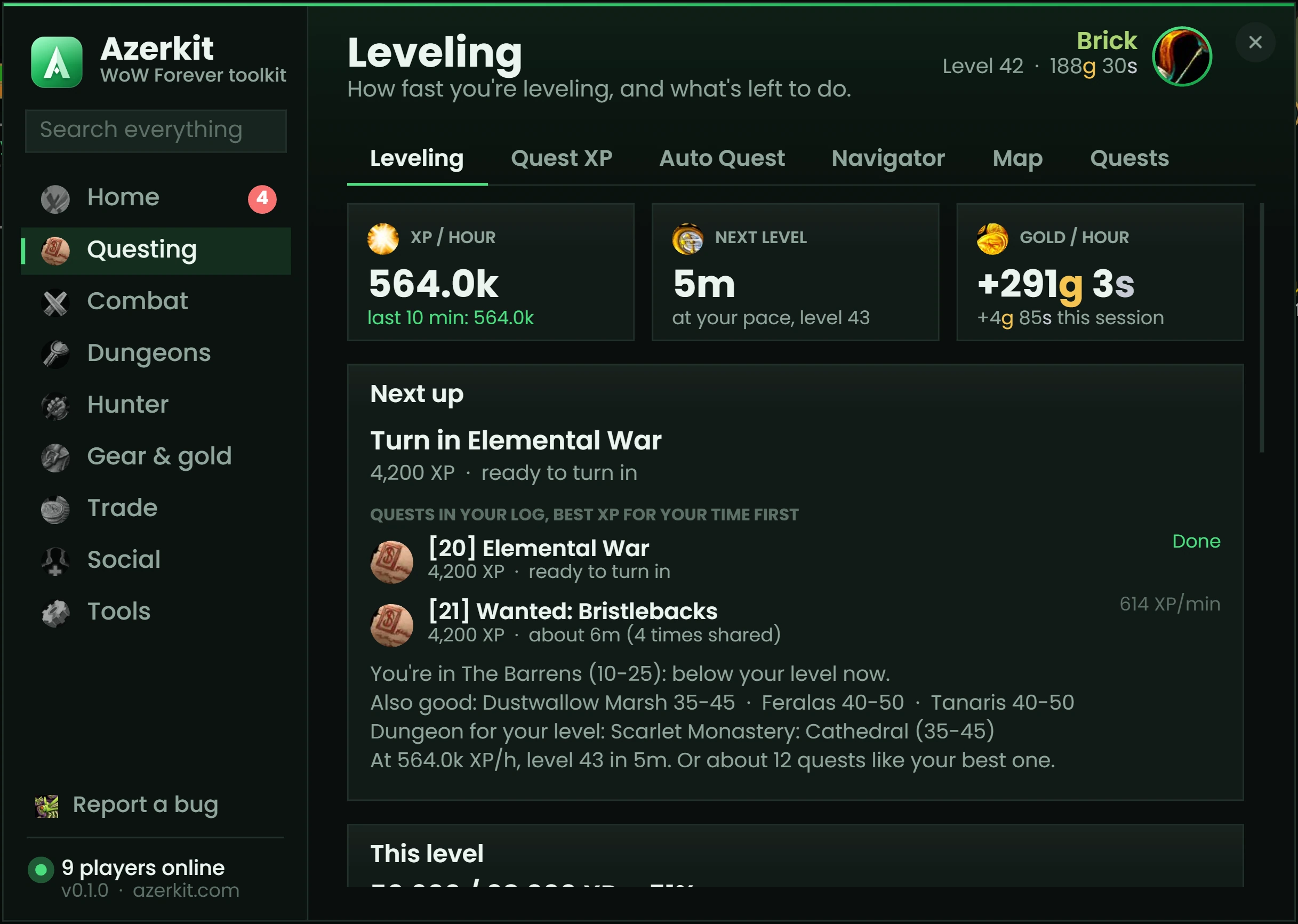
Open Azerkit with /ak and go to Leveling. The page answers three questions all the time:
- How fast am I going? XP per hour for the whole session and for the last 10 minutes, so you can tell whether the current zone is still paying off.
- How far is the next level? Time, kills and quests to the next level at your current pace, plus your rested XP and when it will be full.
- What next? The Next up card picks the best quest to do or turn in from your quest log, best XP for your time first, and suggests zones and a dungeon for your level.
If you like to see this while playing, turn on the optional Next up panel and the XP HUD. Both are off by default and both can be dragged anywhere.
Session goals
Pick a goal for the session, such as a level or an amount of XP, and Azerkit shows a pop-up the moment you hit it. It sounds small, but a clear stopping point keeps sessions focused.
See finished quests on your XP bar
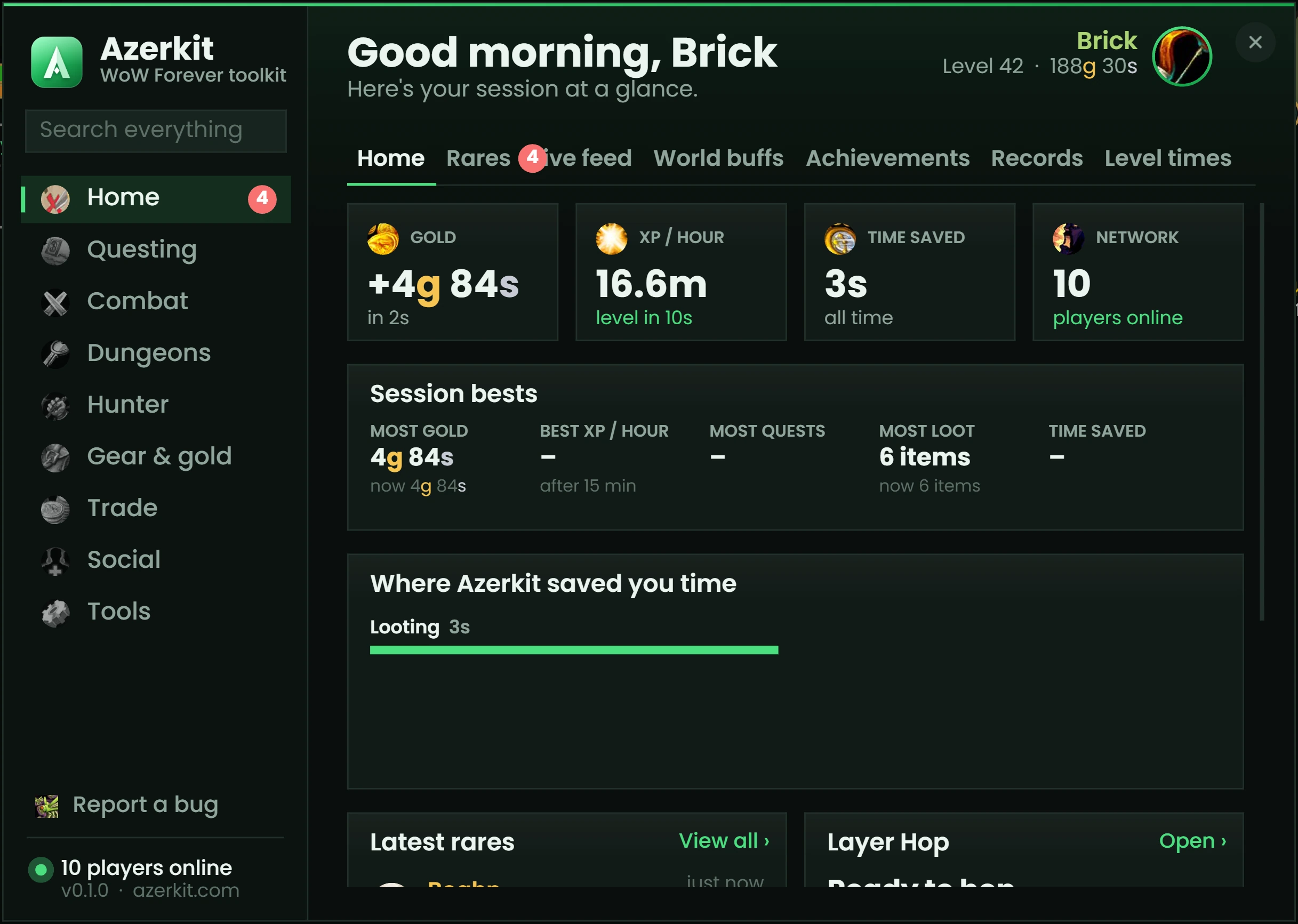
Azerkit draws a yellow section on your experience bar for the XP your finished quests will give when you hand them in. Hover the bar for the breakdown. It is on by default.
This makes one decision easy: if the yellow section already reaches past the end of your bar, go and turn in before you start anything new.
Let the map show you where to go
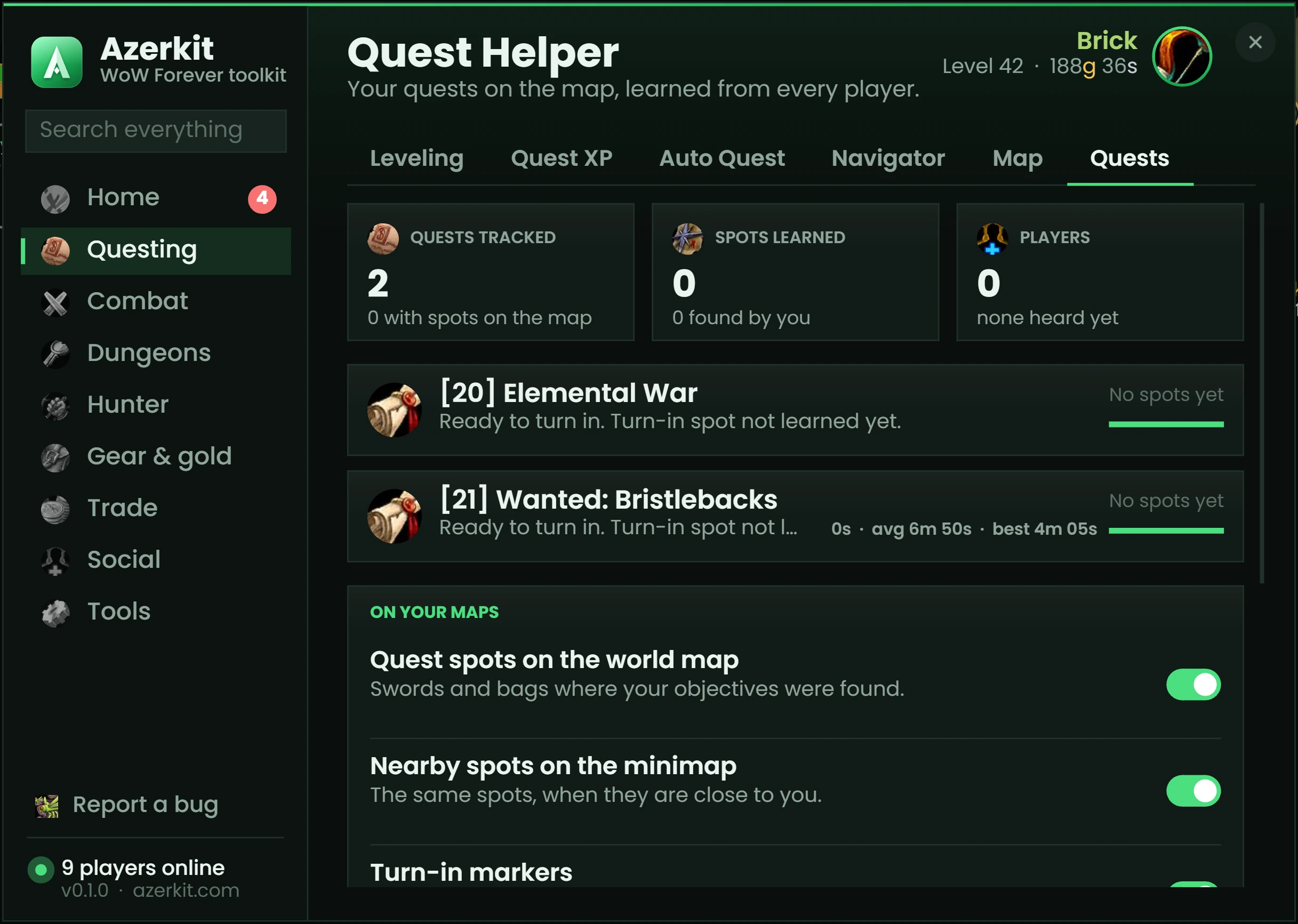
Azerkit ships no quest database. Instead, the Quest Helper learns from Azerkit players as they quest:
- where quest givers stand and what they offer,
- where each quest is handed in,
- where objectives progress, because the quest log count went up while someone stood there.
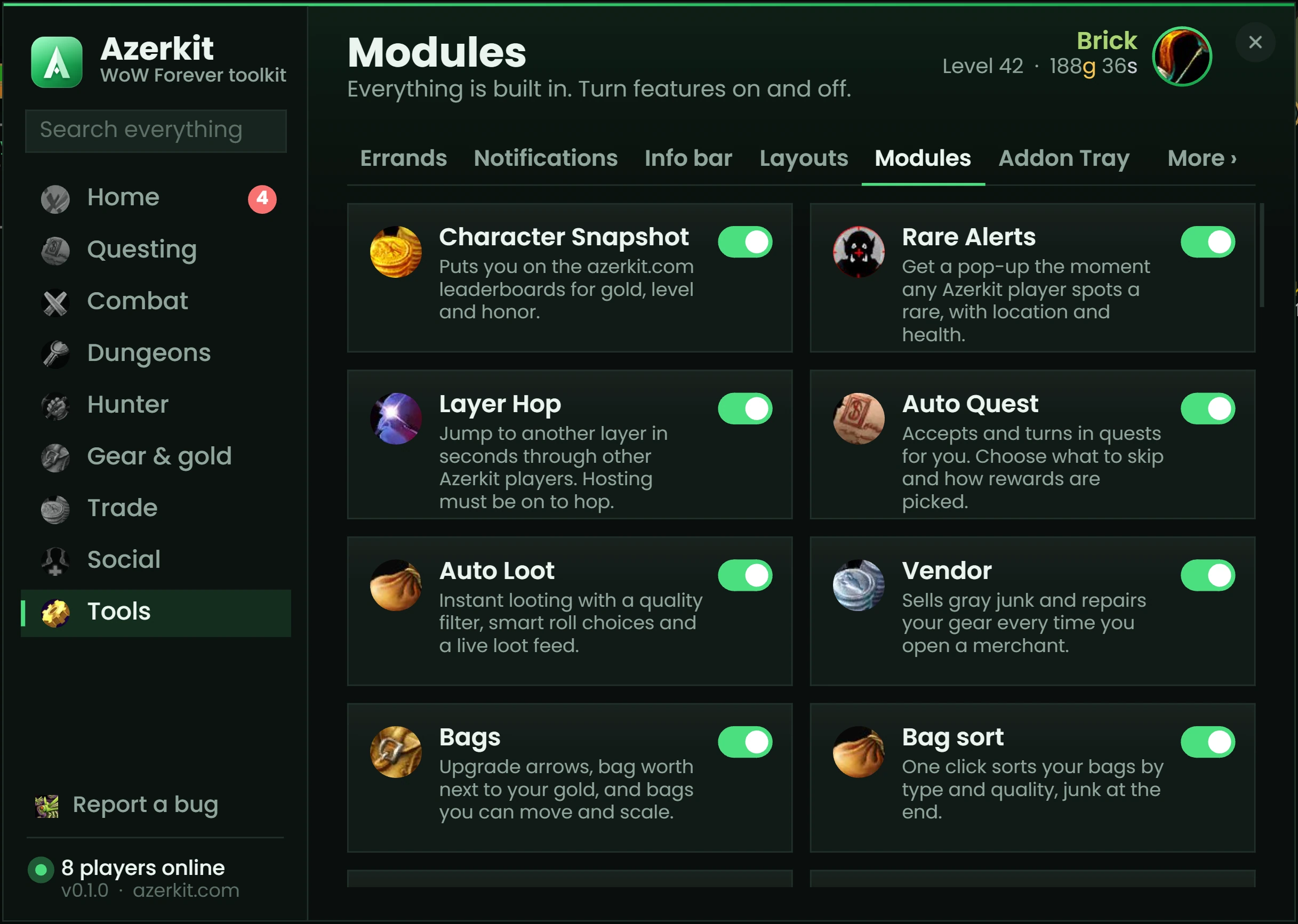
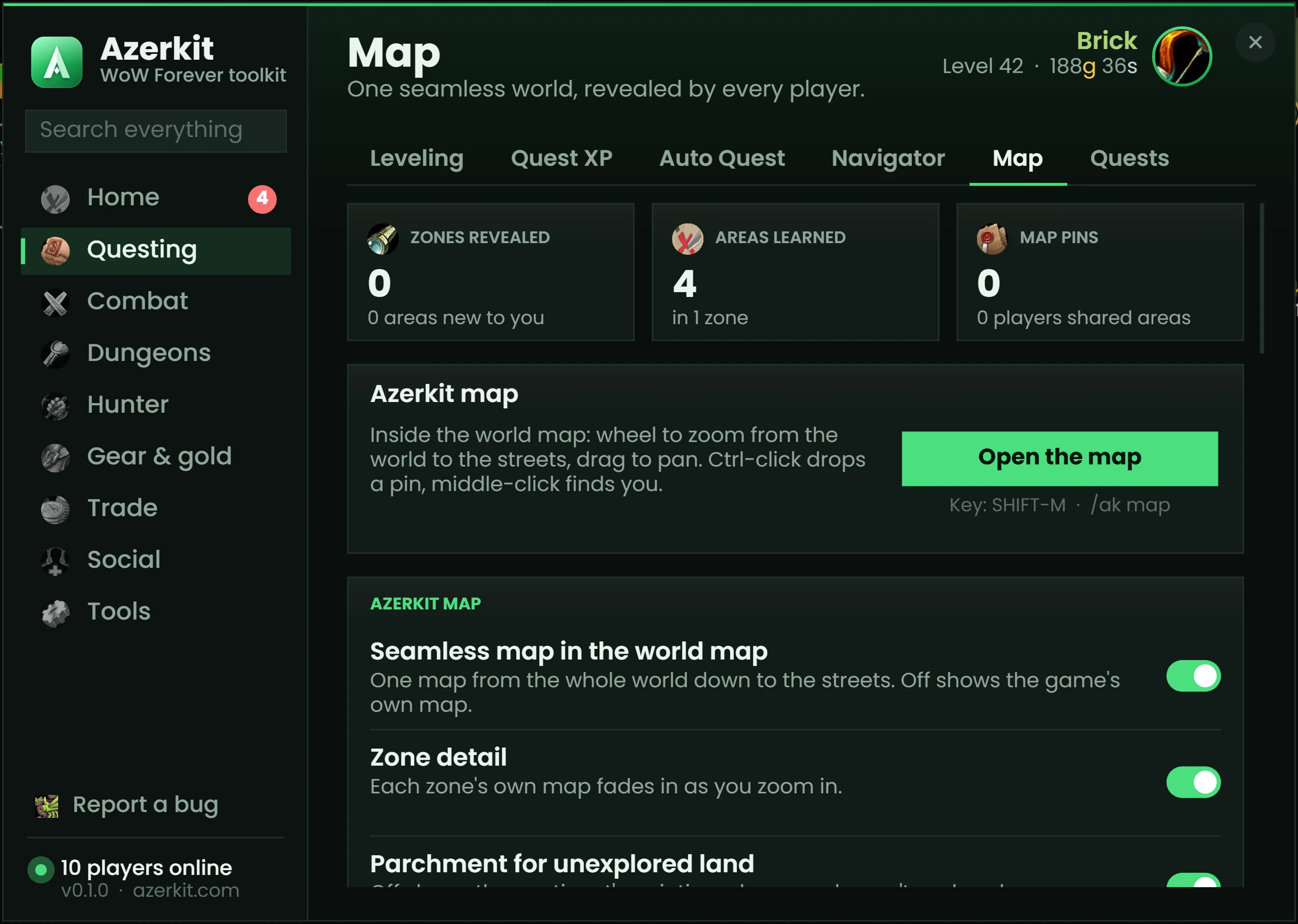
Those spots are merged, shared over the Azerkit network and drawn as icons on the world map and minimap. The tooltip tells you how many players a spot was learned from. Click a spot to navigate to it.
The more people play with Azerkit in your area, the better the pins get. Early on, some quests will have no spots yet.
Follow the arrow
The Navigator has two parts:
- Quest markers over enemy health bars: a gold
!with your progress (for example3/10) above every mob you still need for a quest. No more killing the wrong boar. - A navigation arrow with the distance to any destination: a quest spot, a rare, a map pin. Type
/ak nav 45.2 61.8to head for coordinates in your zone, or/ak nav stopto clear it.
On the Azerkit world map (/ak map), Ctrl-click to drop a pin; it sets the arrow and the game's own waypoint where the client allows it.
Accept and hand in without the clicks
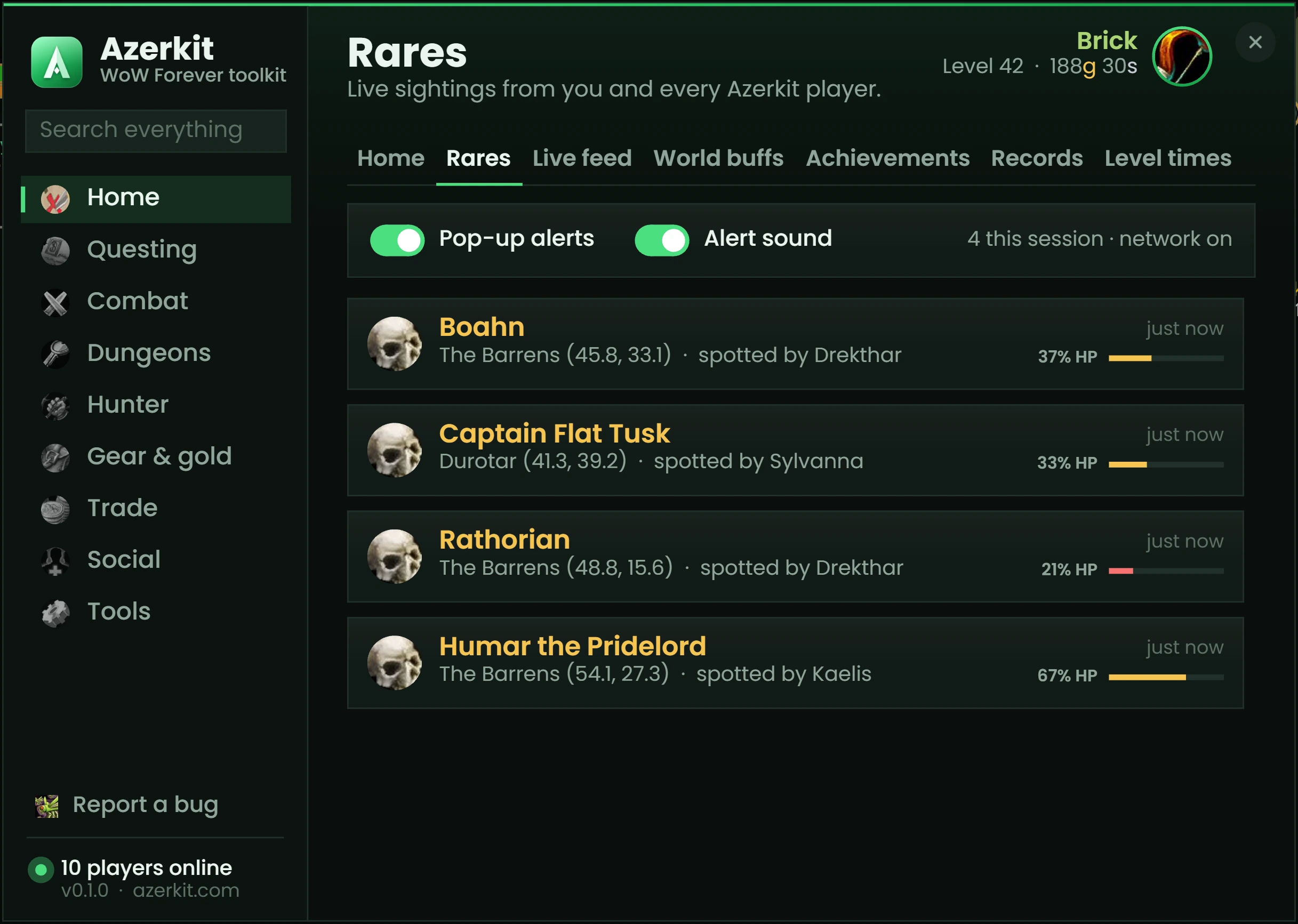
Auto Quest accepts and turns in quests for you. You choose how rewards are picked (ask, or most valuable) and what to skip: grey quests, dailies, quests that cost gold, and shared quests. Hold the pause key while talking to an NPC when you want to do it yourself.
In a group, /ak sharequests shares your quests with the party, and Party quests shows small portraits beside each quest in your tracker: who has it, who is ready to turn in, and who has already done it.
Use dungeons well
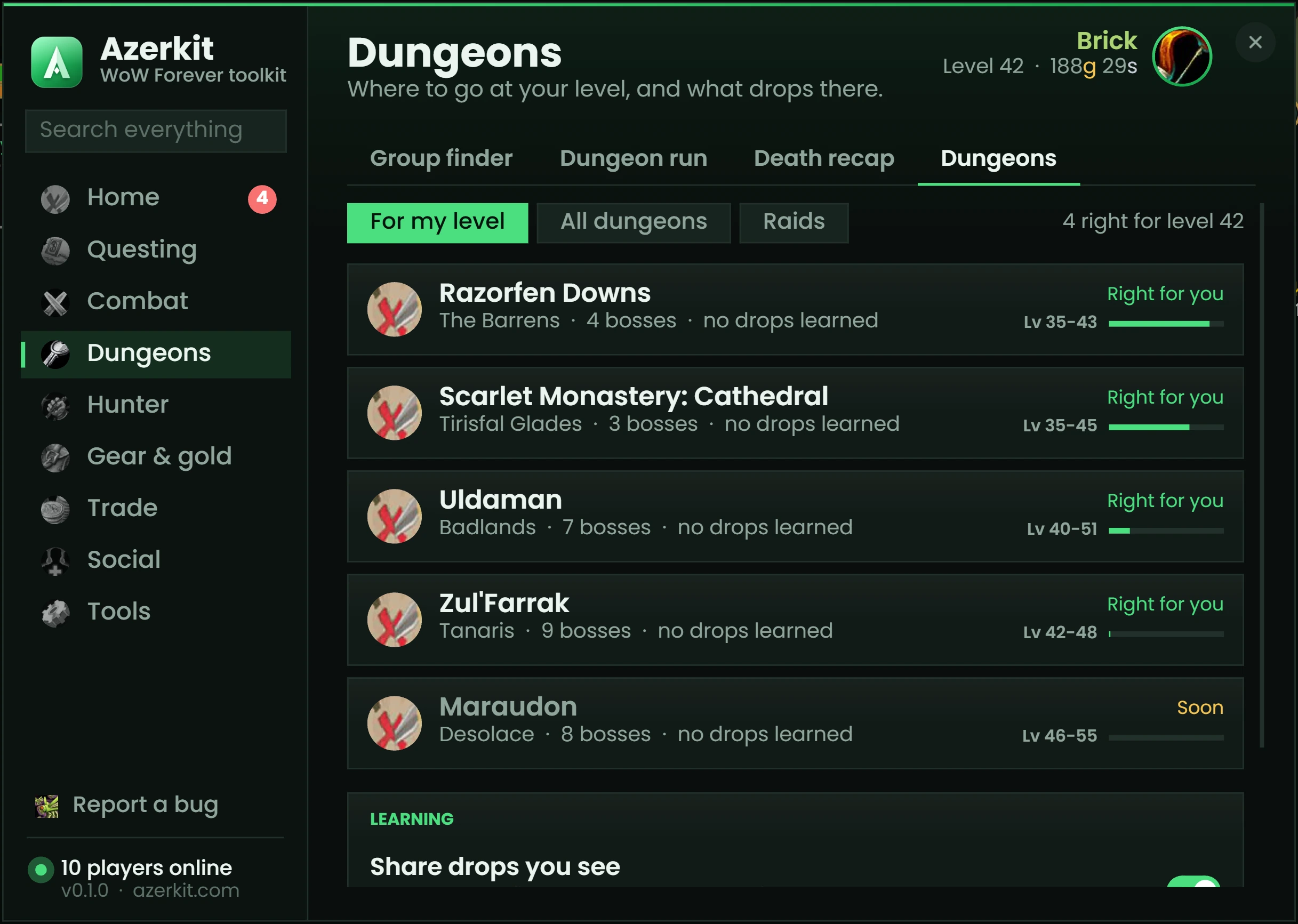
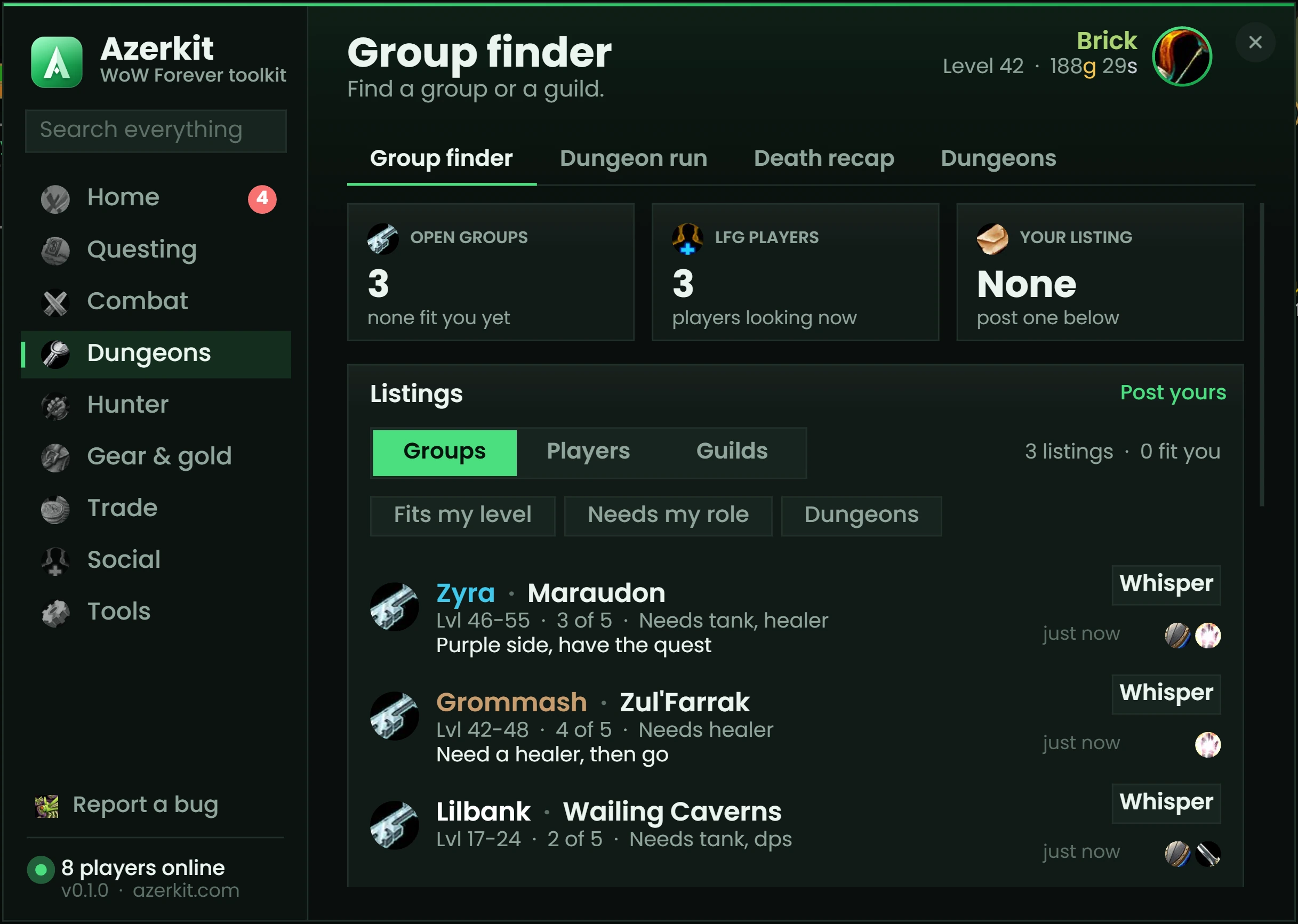
The Dungeon guide marks dungeons that are good for your level and lists their bosses. The dungeon pages here show the same information with short tactics. When you are ready, the in-game group finder, or the group finder on the website, finds you a group.
A simple routine
- Open the Leveling page, check the Next up card.
- Do the quests it suggests, following the arrow and the map pins.
- When the yellow section of your XP bar fills, turn in.
- When XP per hour for the last 10 minutes drops well below your session average, move zone or find a dungeon group.
That is the whole trick: fewer decisions, made with real numbers.
Type /ak in game
Every module in this guide has its own page in the Azerkit window, with its switches and what it did this session.