 Azerkit
Getting started 3 min read
How to install Azerkit on WoW Forever
Download Azerkit, put it in the right AddOns folder for WoW Forever, turn it on at character select and open it with /ak. Five minutes, no installer.
How to install Azerkit on WoW Forever
Azerkit is one addon folder. There is no installer and nothing runs outside the game: you copy a folder into the game's AddOns directory and the game loads it the next time you log in.
What you need
- World of Warcraft with the WoW: Forever game version installed through the Battle.net app.
- The latest Azerkit download (a
.zipfile) from the download page. - About five minutes.
Azerkit is free and complete. Every module in the addon works without an account. An azerkit.com account is optional and only adds the website features: your characters, the web map and leaderboards.
Step 1: find your AddOns folder
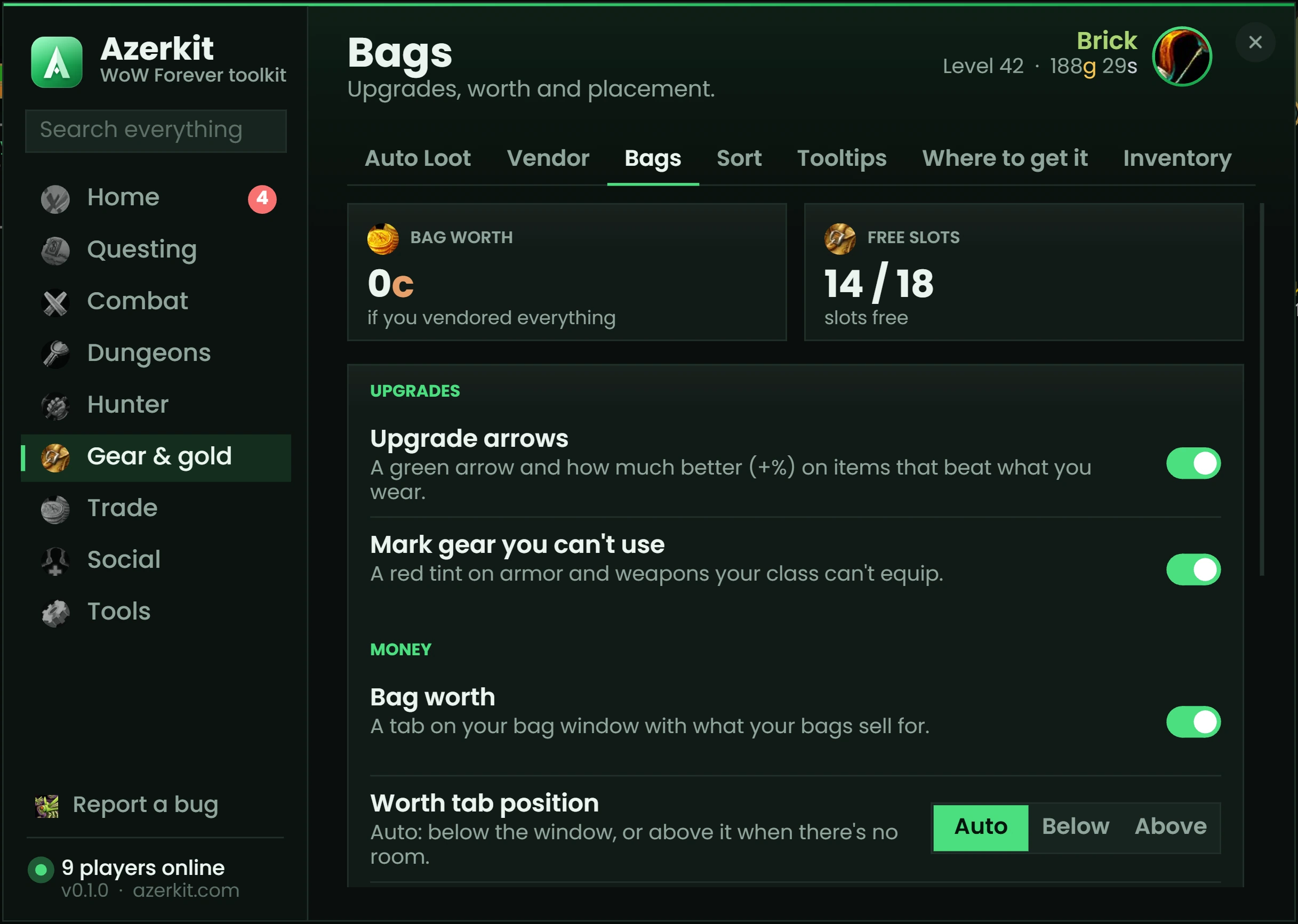
Each game version keeps its own addons. For WoW: Forever the folder is inside the _forever_ directory of your World of Warcraft install:
World of Warcraft/_forever_/Interface/AddOns
On a default Windows install that is:
C:\Program Files (x86)\World of Warcraft\_forever_\Interface\AddOns
If Interface or AddOns does not exist yet, create them. The Battle.net app can show you where the game lives: open the game's page, click the gear next to Play and choose Show in Explorer (Windows) or Show in Finder (Mac).
Step 2: copy the Azerkit folder
- Unzip the download.
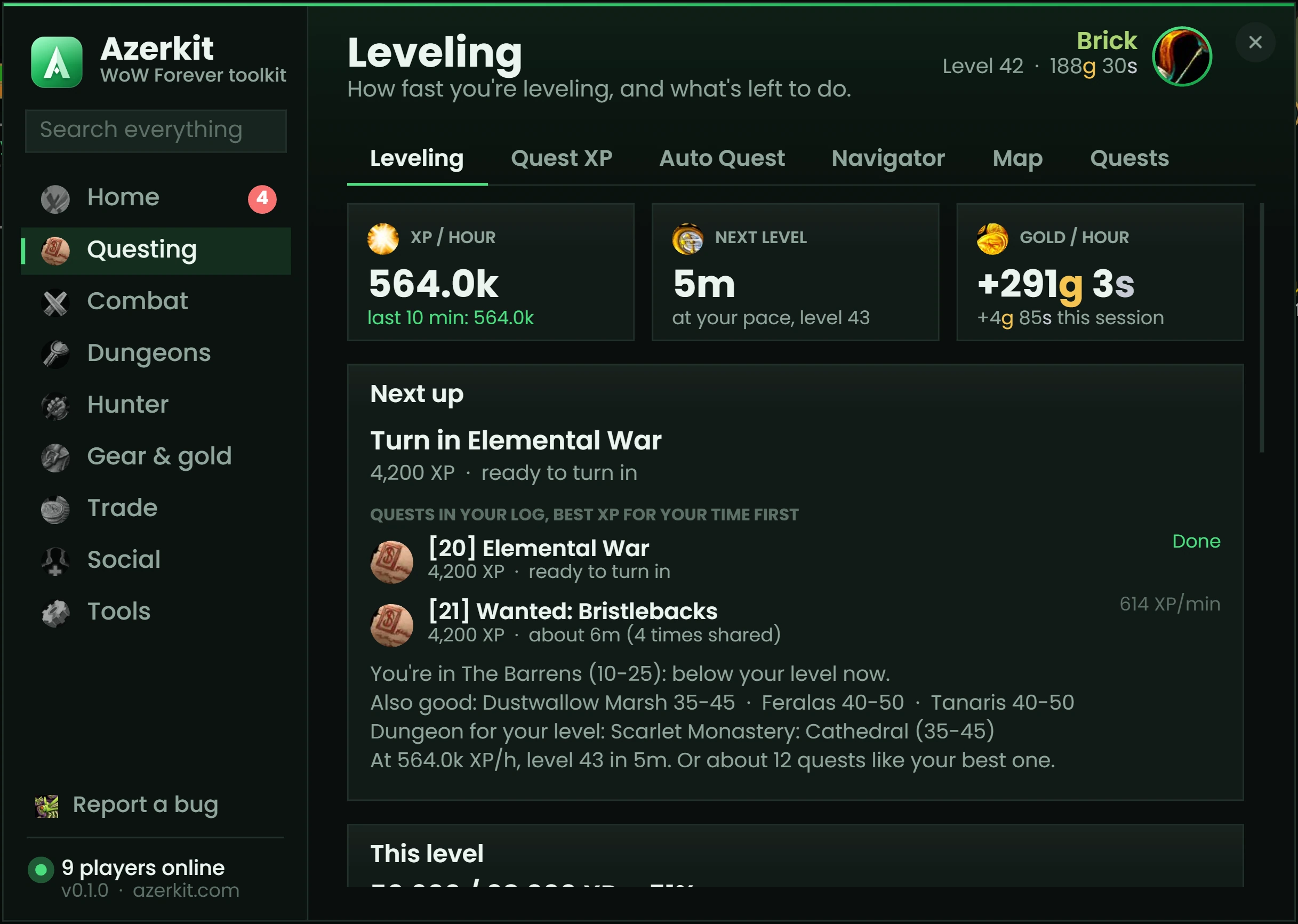
- Inside you will find a folder named
Azerkit. Copy that folder, not the zip and not a folder around it, intoAddOns. - Check the result. This file should exist:
World of Warcraft/_forever_/Interface/AddOns/Azerkit/Azerkit.toc
If you see AddOns/Azerkit/Azerkit/Azerkit.toc instead, the folder is one level too deep. Move the inner Azerkit folder up.
Step 3: turn it on at character select
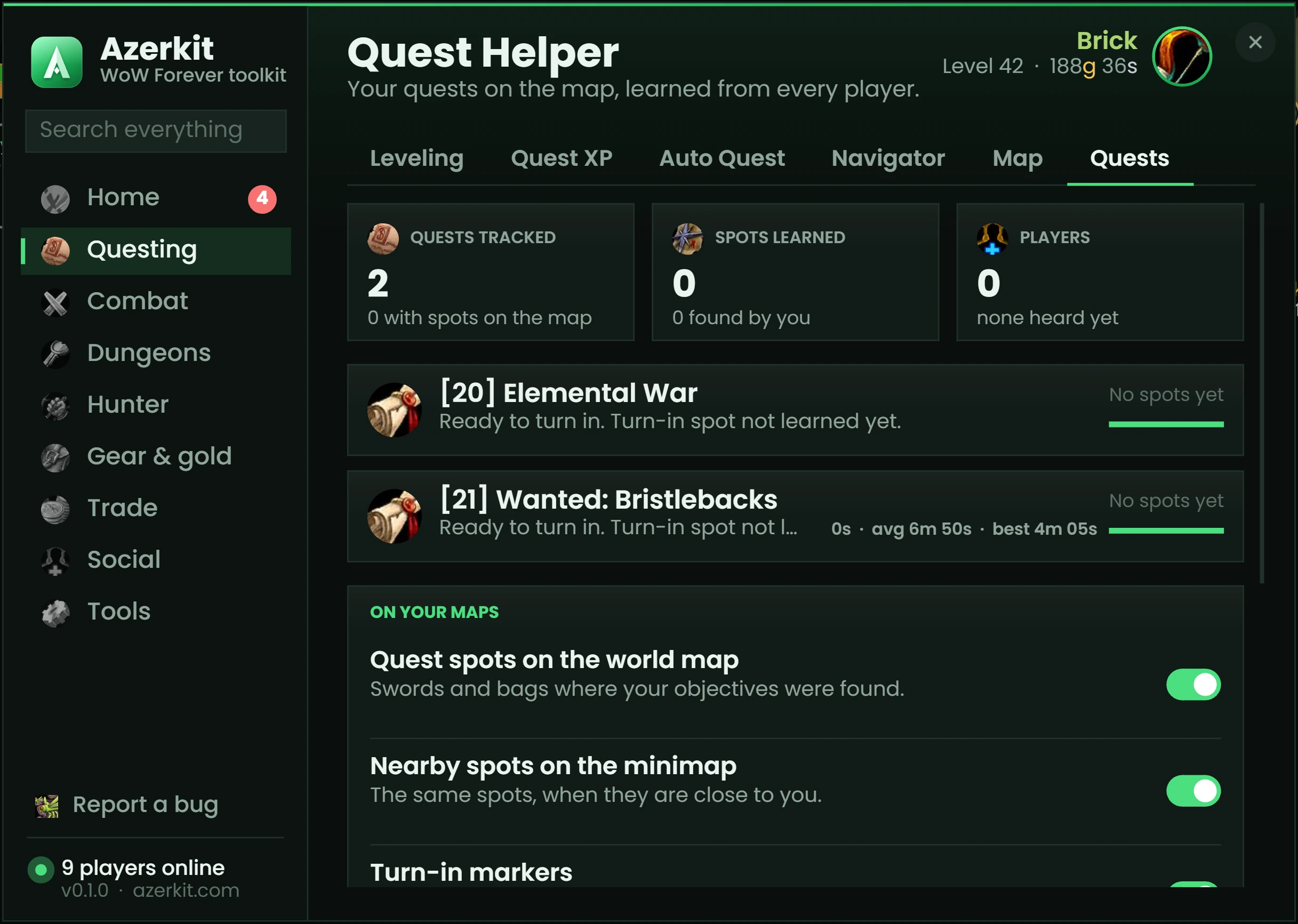
- Start WoW: Forever and stop at the character list.
- Click AddOns in the lower left.
- Make sure Azerkit is ticked, then click Okay.
If the game was already running while you copied the files, log out to character select first. A /reload is enough for updates, but a new addon folder is only picked up from character select.
Step 4: open Azerkit
Log in and type:
/ak
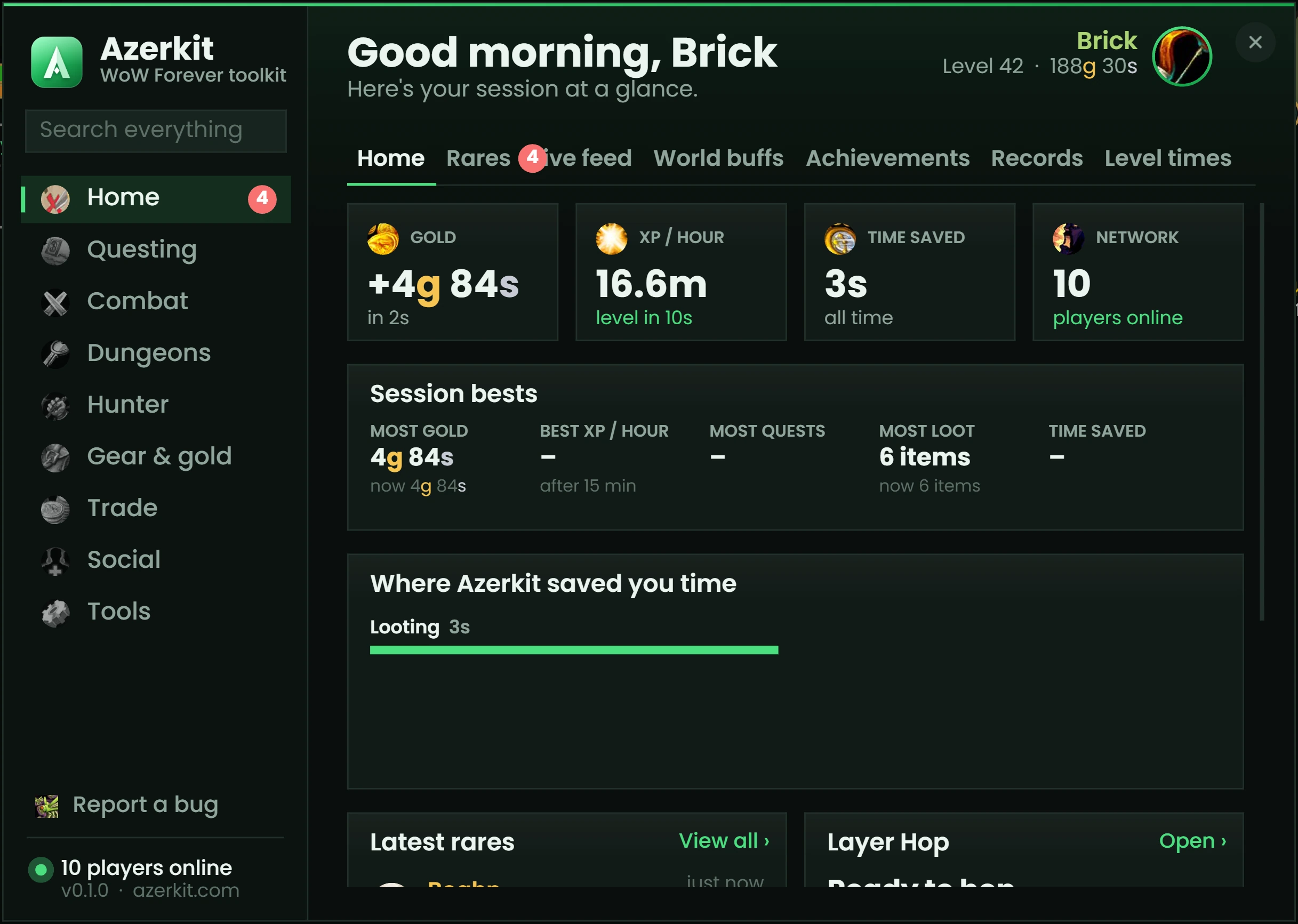
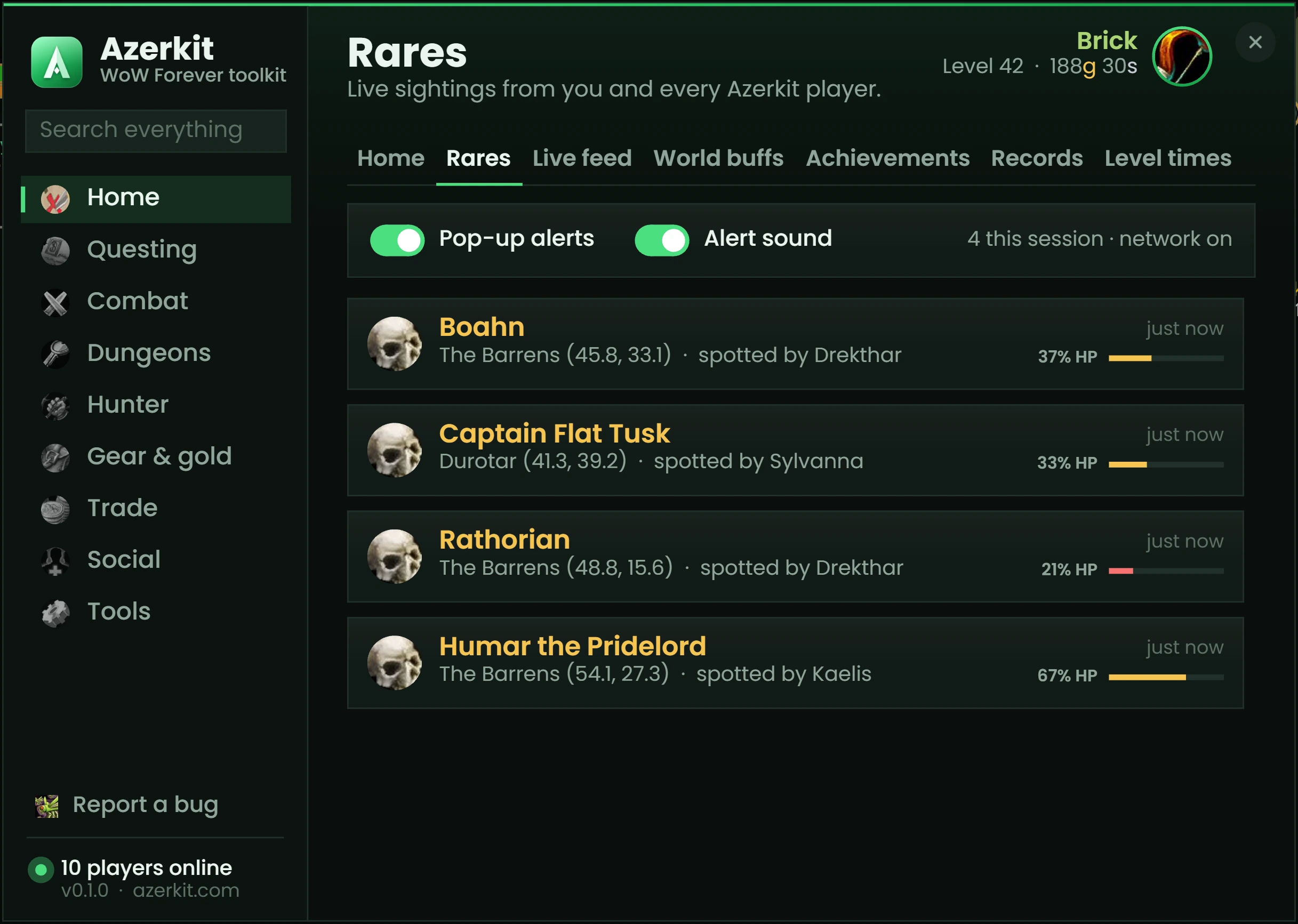
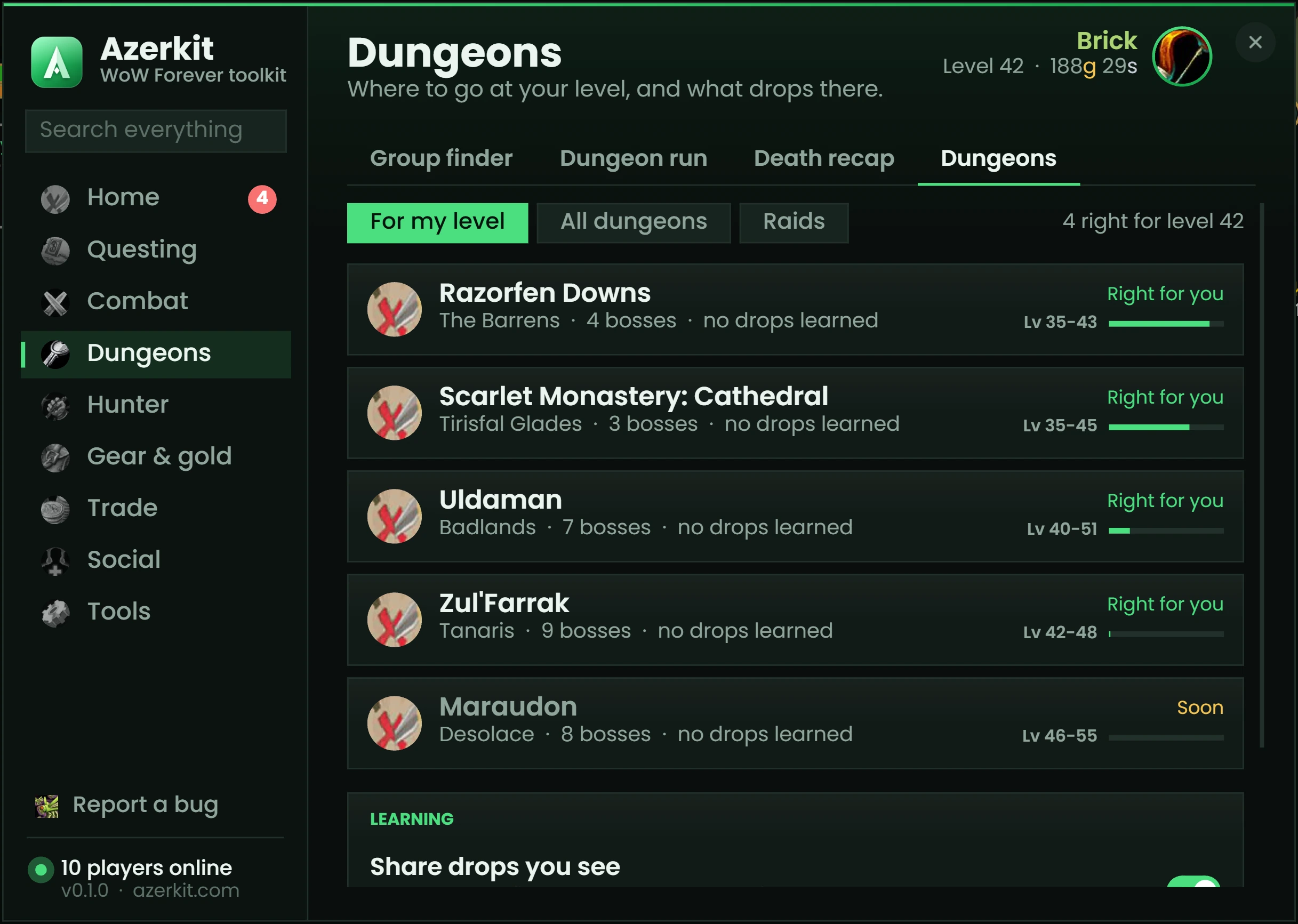
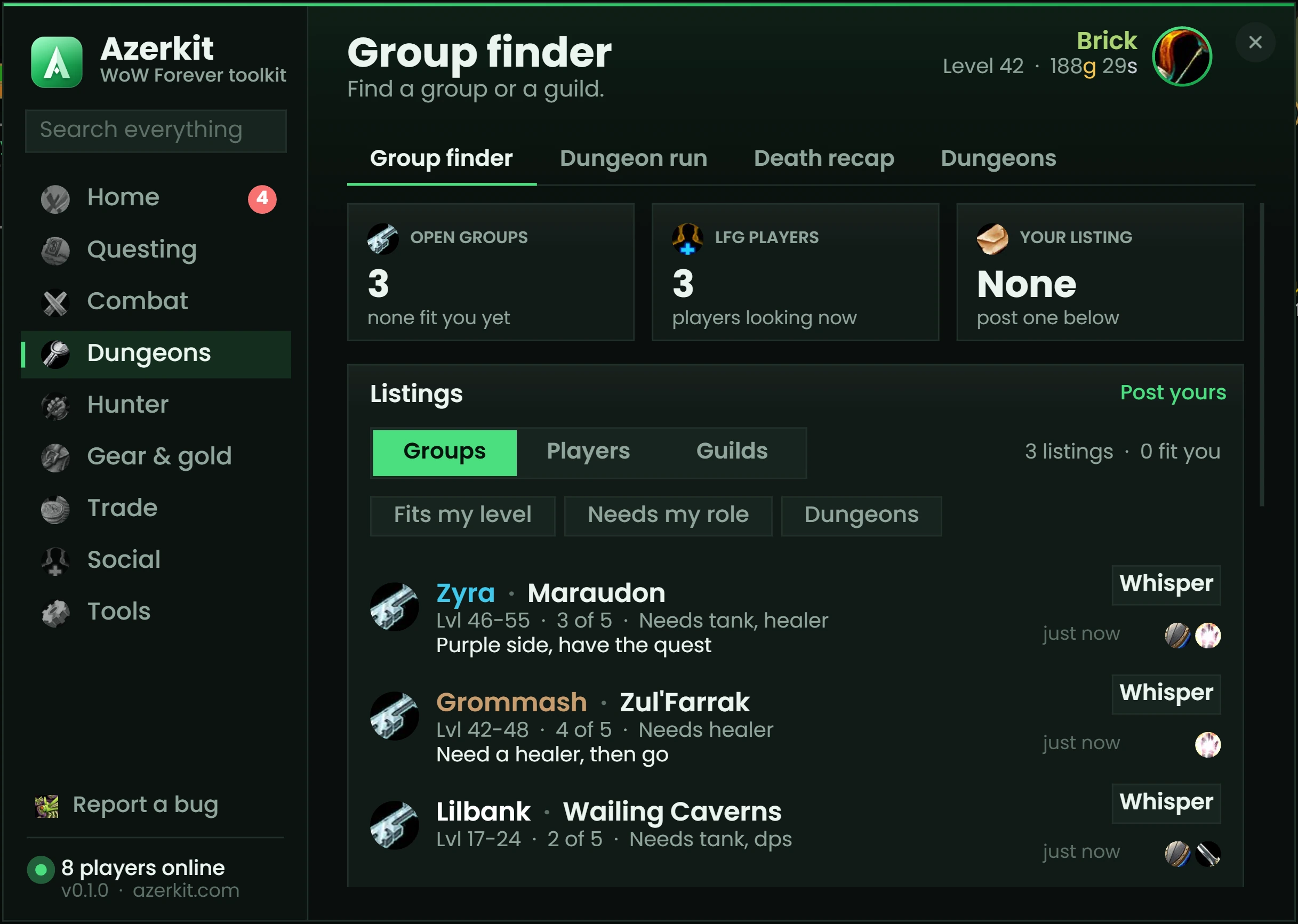
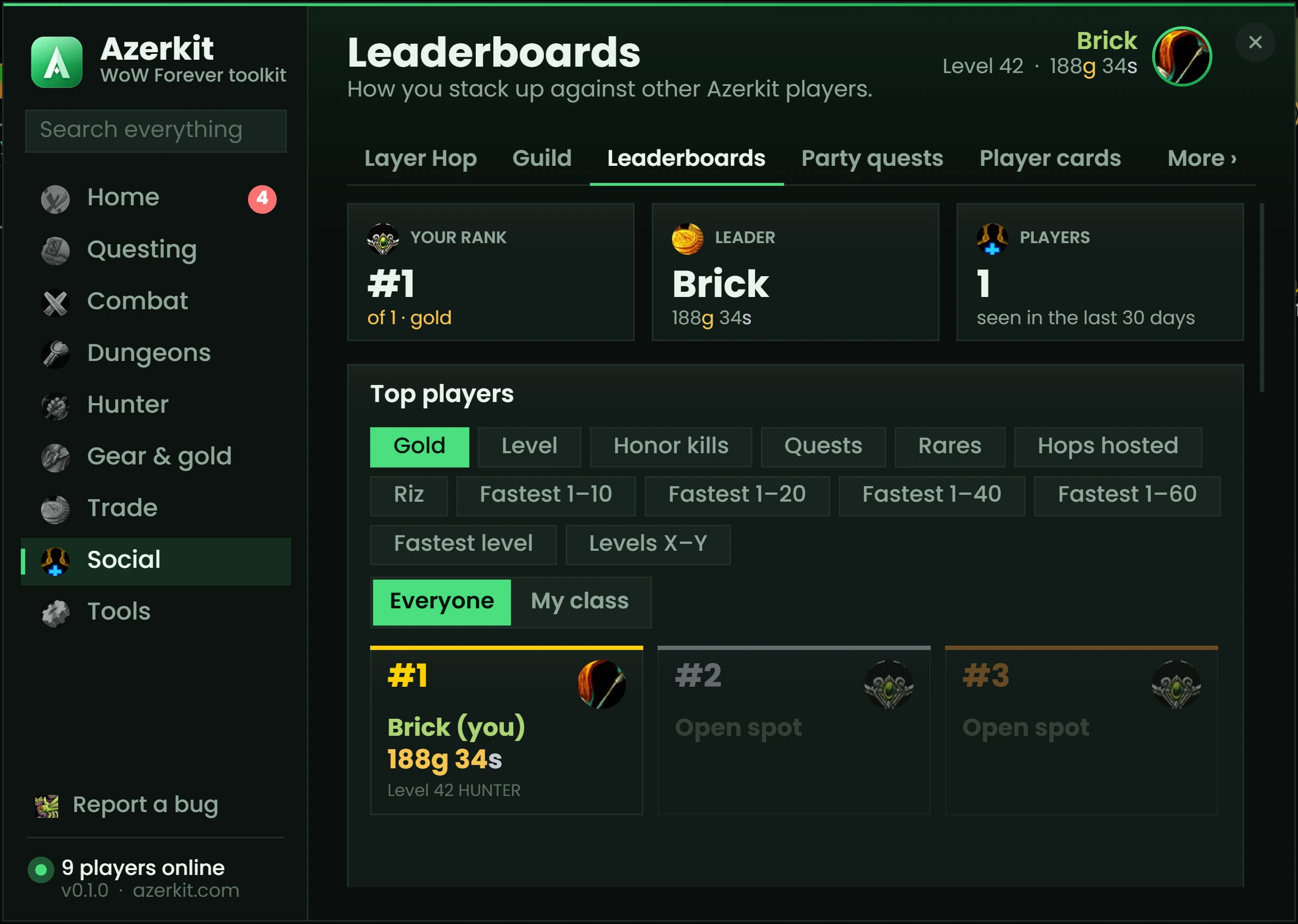
The Azerkit window opens on the Home page with your session at a glance: gold, XP per hour, rares seen and how many Azerkit players are online. There is also a minimap button: left-click opens the window, right-click opens the addon tray.
Useful first commands:
| Command | What it does |
|---|---|
/ak |
Opens or closes the Azerkit window |
/ak map |
Opens the Azerkit world map |
/ak rares |
Shows recent rare sightings |
/ak find text |
Searches your bags, bank and mail on every character |
/ak where item |
Shows where an item comes from |
/ak version |
Prints the installed version |
Step 5: pick your modules
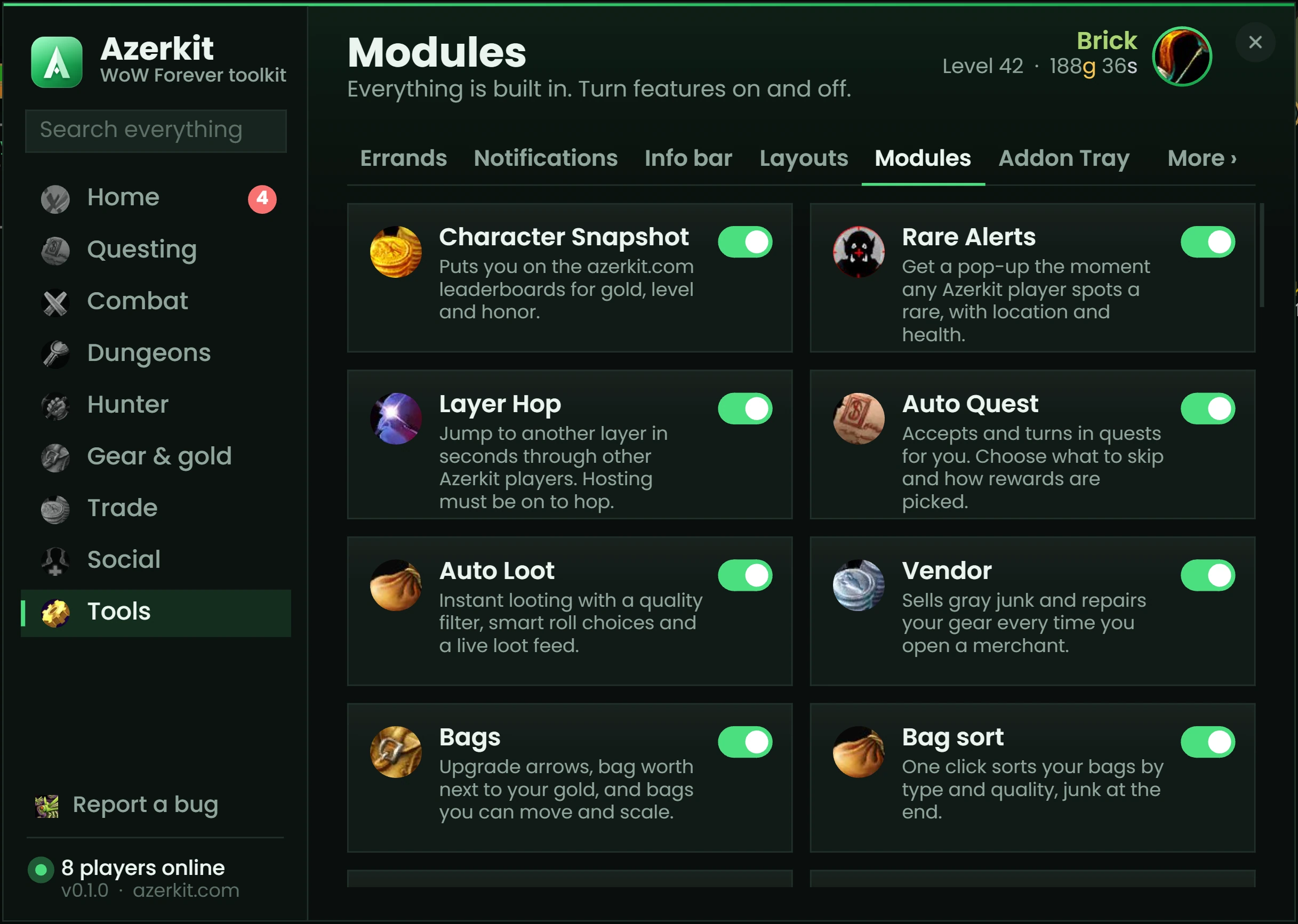
Azerkit replaces many single-purpose addons, so it is worth a look at the Modules page in the window. Every module can be turned off on its own. If you keep another addon that does the same job (for example a separate bag addon), turn off the matching Azerkit module so the two do not fight over the same frames.
Updating
Download the new version, delete the old AddOns/Azerkit folder and copy the new one in its place. Your settings are kept: they live in the game's WTF folder, not in the addon folder.
Something went wrong?
- Azerkit is not in the AddOns list. The folder is in the wrong place or one level too deep. Check step 2.
- The list shows it as out of date. Tick Load out of date AddOns at the top of the AddOns list, or download the latest version.
- An error pops up. Azerkit records the error and, if you share data, sends it to us so we can fix it. You can also type
/ak debugand send us what it prints.
Next: link your characters to azerkit.com to see them on the website, or read the levelling guide.
Type /ak in game
Every module in this guide has its own page in the Azerkit window, with its switches and what it did this session.